AirNav RadarBox Features: Bookmarks
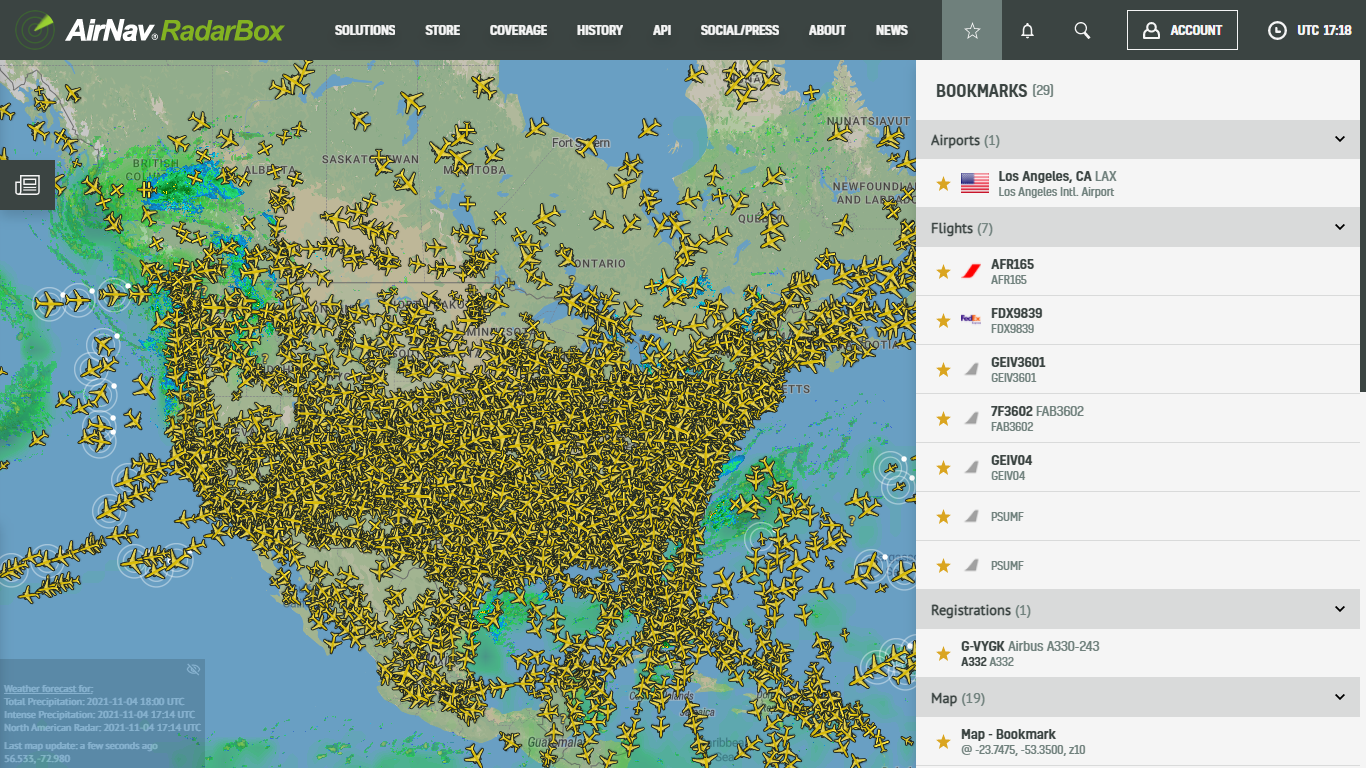
The Image Above: Bookmarks displayed on RadarBox.com
AirNav RadarBox is constatly striving to provide its users with useful features such as Airband Radio, Last Trails that will enhance and augment their flight tracking experience.
This time, we'll feature the RadarBox bookmark available on our website and app. The bookmark feature is an indispensable tool for aviation lovers who want to save their favorite aircraft (registration & flight) and airports.
The RadarBox bookmark was specially designed to save & store your favorite flights, airports, aircraft (by registration), and even favorite geographical regions. With this feature, you don't need to search for a flight or aircraft that you commonly track or view. Simply save it in bookmarks and you'll be able to access it easily and quickly on RadarBox apps and website.
How to use bookmarks on RadarBox.com?
Visit RadarBox.com and locate the star icon on the top right side of the page. Click on it.

The Image Above: Bookmarks displayed on RadarBox.com
1. Airports
Step 1 - Once open - search for a specific airport either by name or IATA or ICAO code and click "Locate on map" - In the example below, we've searched for Atlanta International Airport with the IATA code (ATL).
.png)
The Image Above: Bookmark option for Airport on RadarBox.com
Step 2 - After clicking on the "Locate on Map" option, a tab with airport information will be displayed on the right side of the screen. At the top of the tab, click on the star icon and confirm your choice on the left side of the page in the bookmark tab.
.png)
2. Flights
Step 1 - To use the bookmarks option for flights, search for a flight and click "Locate on map" or click on a random flight. This option is specially designed for those who frequently search for a specific flight or flights that they often track.

The Image Above: Bookmark option for Flights on RadarBox.com
Step 2 - With the flight card displayed on the left side of RadarBox.com, click on the star icon and confirm on the right tab within the bookmark tab. Done!


The Image Above: Bookmark option for Flights on RadarBox.com
3. Flight Registration
Step 1 - To save an aircraft to your bookmark, just click on the aircraft registration number. This option was developed especially for those who want to save some aircraft to see its movements without searching again.

The Image Above: Bookmark option by Aircraft Registration on RadarBox.com
Step 2 - Click on the star icon and confirm your choice of aircraft by registration on the left side of the page.

The Image Above: Bookmark option by Aircraft Registration on RadarBox.com
4. Geographical region
The bookmark by geographic region refers to locations you frequently track and follow aircraft and local air traffic - saving the areas of the world where you view most aircraft and just clicking on the bookmark without searching on the map.

The Image Above: Bookmark option for Geographic Region (map option) on RadarBox.com
Just choose some region worldwide and select the star icon, open the "Map" option, and confirm the note.
5. ADS-B & VHF Stations
Bookmark created especially for our ADS-B and VHF feeders, who can save their stations and stations of interest in order to view them without having to search within RadarBox.com global station ranking.

The Image Above: Bookmarks for ADS-B & VHF stations
Step 1 - Simply go to Radarbox.com/stations and click on an ADS-B or VHF station of interest and then click on the star marker and confirm the note on the right side of the RadarBox.com page.

The Image Above: Bookmarks for ADS-B & VHF stations
RadarBox Apps
RadarBox bookmarks are also available in a mobile version for Android and iOS. The usability is the same as RadarBox.com - just click on the star icon of a flight, airport, aircraft, and so on. By doing this, all this will be saved in your individual bookmark that can be accessed on both platforms.
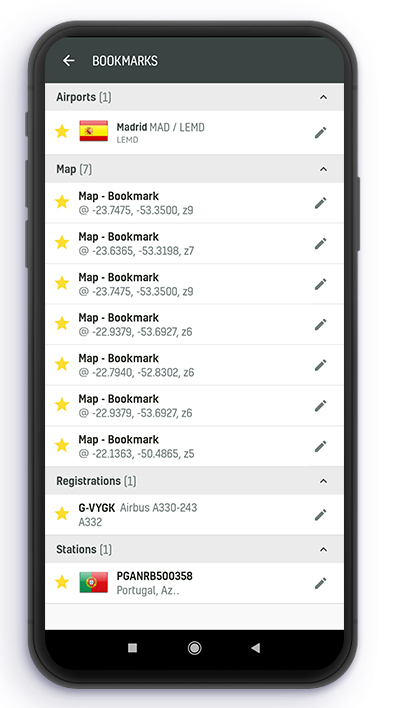
The Image Above: Bookmark feature displayed in the RadarBox Apps
The bookmarks in the RadarBox apps can be found in the settings options from the icon as displayed in the screenshot below.
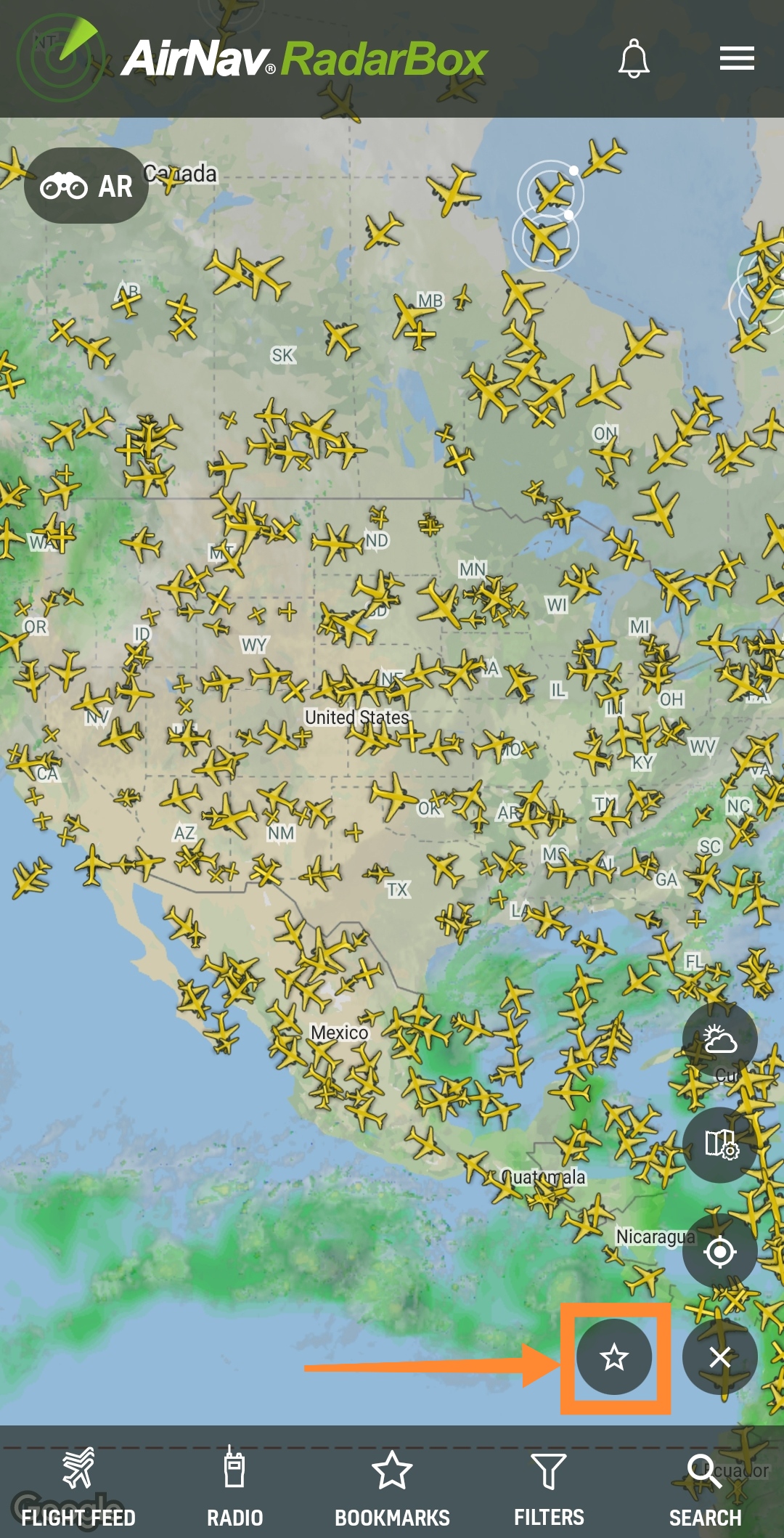
The image above: Tutorial on how to use the bookmark in the RadarBox app
Have a question or feedback? Tweet us with the hashtag #RadarBox or send an email to: [email protected].
Like what you see? Why not download the RadarBox app on your smartphone today!


To use our apps ad-free and why not consider subscribing to RadarBox? Click here to subscribe!